1.2.3
Units
Units of data storage, why computers store data in binary, and how to calculate file sizes and storage requirements. The key is not just memorising definitions, but being able to move confidently between units and apply the three file-size formulas for sound, images, and text.
On this page10 sectionsHide
What you need to know
- Explain why data must be stored in binary for computer processing.
- Know the units from bit up to petabyte and convert between them.
- Calculate storage capacity requirements for a set of files.
- Use the OCR formulas for text, image, and sound file size calculations.
Big Picture
Why computers store data in binary
Computers are built from electronic circuits, and each circuit can only be in one of two states.
A circuit is either on or off. Those two states can be represented as 1 and 0, which is why computers use the binary number system.
This means every type of data, whether it is a number, a letter, an image, or a sound, has to be converted into binary before the computer can process or store it.
- Binary uses only two digits: 0 and 1.
- A bit is one binary digit.
- Computers use binary because their hardware works with two states.
- All data must be represented in binary for processing.
Simple exam sentence
Computers use binary because electronic circuits only have two states, which can be represented as 0 and 1.
Must Know
The units of data storage
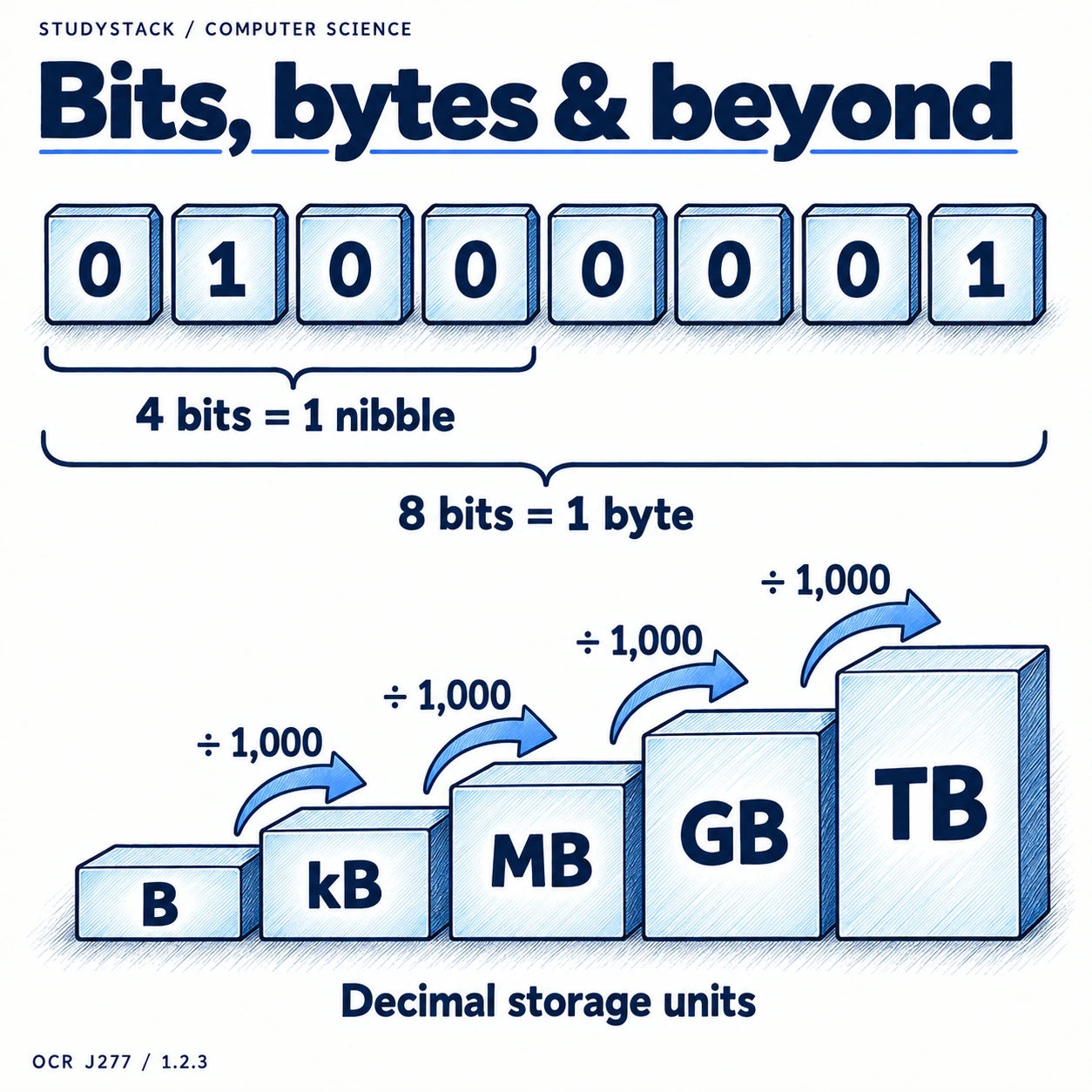
You need to know the key units in order from smallest to largest and be comfortable moving between them.
| Unit | Meaning | Size relationship |
|---|---|---|
| Bit | A single 0 or 1 | Smallest unit of data |
| Nibble | 4 bits | Half a byte |
| Byte | 8 bits | Basic unit for storage calculations |
| Kilobyte (KB) | 1,000 bytes | 1 KB = 1,000 bytes |
| Megabyte (MB) | 1,000 KB | 1 MB = 1,000 KB |
| Gigabyte (GB) | 1,000 MB | 1 GB = 1,000 MB |
| Terabyte (TB) | 1,000 GB | 1 TB = 1,000 GB |
| Petabyte (PB) | 1,000 TB | 1 PB = 1,000 TB |
Units note
These calculations usually use powers of 1,000, but 1,024 may also be accepted in some questions.
Exam Skill
How to move between units without getting lost
The unit names are straightforward, but conversions catch people out when they multiply instead of dividing or vice versa.
When you move from a smaller unit to a bigger unit, you divide by 1,000. For example, 5,000 bytes is 5 KB.
When you move from a bigger unit to a smaller unit, you multiply by 1,000. For example, 3 GB is 3,000 MB.
- Small to big: divide by 1,000.
- Big to small: multiply by 1,000.
- Always check whether the answer should be in bits or bytes.
- Read the unit in the final answer carefully before stopping.
Common mistake
Do not mix up bits and bytes. A lowercase b usually means bits, while an uppercase B means bytes.
Application
Calculating storage capacity requirements
You may need to work out how much storage is needed for a group of files or whether a device has enough capacity.
The basic method is to work out the size of one file, multiply if needed, then convert into the most useful unit.
For example, if one photo is 10 MB and you have 200 photos, the total is 2,000 MB, which is 2 GB.
- Find the size of one file.
- Multiply by the number of files if needed.
- Convert into KB, MB, GB, or TB as required.
- Compare the answer with the available device capacity.
Good exam habit
Write your working clearly, especially when converting between units, because method marks often matter.
High-Value Formulas
The three file size formulas you need
These formulas are worth learning accurately because they come up regularly.
| File type | Formula | What affects size |
|---|---|---|
| Sound | Sample rate × duration (s) × bit depth | More samples, longer sound, or more bits per sample increase size |
| Image | Colour depth × image height × image width | More pixels or more bits per pixel increase size |
| Text | Bits per character × number of characters | More characters or more bits per character increase size |
Fast memory aid
Sound uses sample rate, image uses pixels, and text uses characters.
Formula 1
Sound file sizes
Sound files are built from lots of individual sound samples taken every second.
The sample rate tells you how many times per second the sound is measured. The bit depth tells you how many bits are used for each sample. Duration tells you how long the recording lasts.
If sample rate or bit depth increases, quality can improve, but the file size also increases. If duration increases, file size also increases because there are more samples overall.
- Higher sample rate usually means better sound quality and a bigger file.
- Higher bit depth usually means better sound quality and a bigger file.
- Longer recordings always mean larger files.
Formula 2 and 3
Image and text file sizes
Image and text calculations look simpler, but you still need to know what each value means.
For images, width and height tell you how many pixels there are, while colour depth tells you how many bits are used to store each pixel. More pixels or a higher colour depth mean a larger file.
For text, the key values are bits per character and the number of characters. If more characters are stored, or if each character uses more bits, the file size becomes larger.
- Higher resolution means more pixels and a larger image file.
- Higher colour depth means more detail per pixel and a larger image file.
- More characters mean a larger text file.
- More bits per character mean a larger text file.
Quality vs size
In many questions, improving quality usually increases file size. That link is worth stating clearly in your answer.
Key takeaways
- A bit is a single 0 or 1, a nibble is 4 bits, and a byte is 8 bits.
- Computers use binary because electronic circuits have two states: on and off.
- Unit conversions usually use 1,000, although 1,024 may also be accepted.
- Higher sample rate, bit depth, colour depth, or resolution usually improve quality but also increase file size.
Glossary
- Bit
- A single binary digit, either 0 or 1.
- Nibble
- A group of 4 bits.
- Byte
- A group of 8 bits.
- Sample rate
- The number of times per second a sound is measured, usually in hertz.
- Bit depth
- The number of bits used to store each sound sample.
- Colour depth
- The number of bits used to store the colour of each pixel.
Test yourself
5 questions
How many bits are in a byte?
8 bits.
Why must data be stored in binary?
Because computer circuits work using two states, represented as 0 and 1.
What is the OCR sound file size formula?
Sample rate × duration × bit depth.
What is the OCR image file size formula?
Colour depth × image height × image width.
What happens to image size if resolution increases?
The file size increases because there are more pixels to store.
Common questions
What units of data storage do I need for OCR J277?
You need to know bit, nibble, byte, kilobyte, megabyte, gigabyte, terabyte, and petabyte, and be able to move between them.
Why do computers use binary instead of denary?
Because their electronic hardware only has two states, so binary matches the way circuits actually work.
How do I calculate file sizes in OCR GCSE Computer Science?
Use the correct formula for the file type: sound uses sample rate × duration × bit depth, image uses colour depth × height × width, and text uses bits per character × number of characters.
Is OCR using 1,000 or 1,024 for units?
OCR commonly teaches unit conversions using 1,000, but 1,024 may also be accepted in some calculations.